


How to Add a New Profile on Google Chrome
First things first – let’s see how you can add a new profile to your Google Chrome browser. Profiles is a feature that’s available in the desktop version of Google Chrome, but not in the mobile app. You get only one profile in the Chrome app whether you’re using the browser on Android or iOS. If you want to add more people to your Android device, add them as a separate user on your device and they can use the browser from there.
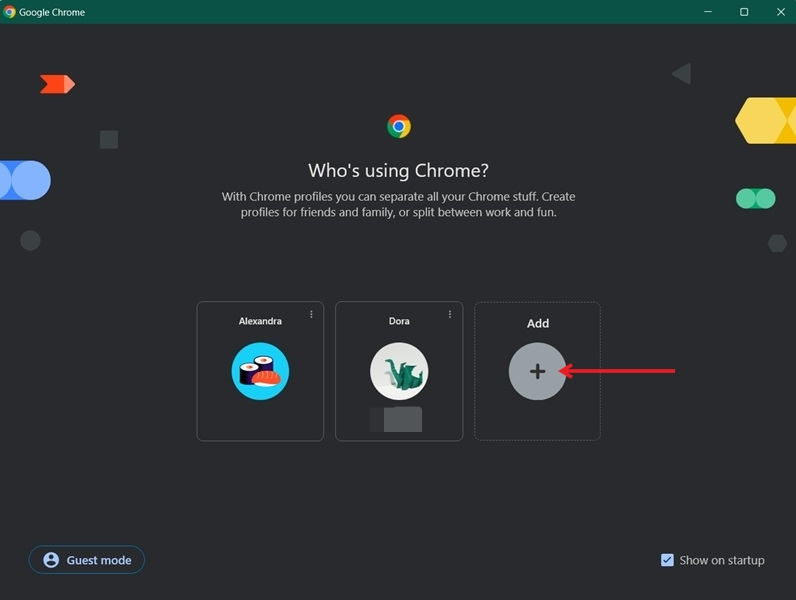
Open Google Chrome on your PC. If you’ve already created a few profiles but want to set up a new one, click the Add button. If you haven’t created a profile before in Chrome, you’ll be taken to the Choose search engine screen directly.
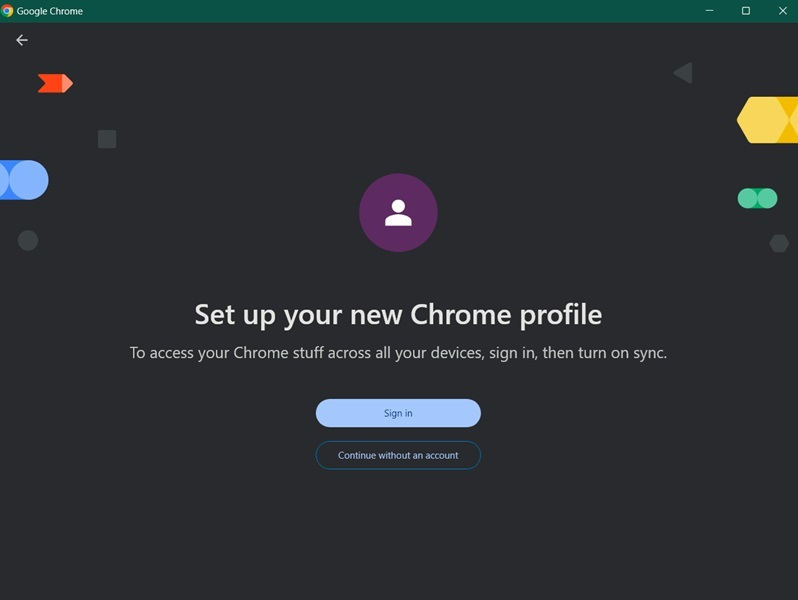
Now, if you have a Google account, you’re encouraged to sign in with it. Nevertheless, if for some reason you don’t want to or you don’t have one, you can opt for the option to Continue without an account.
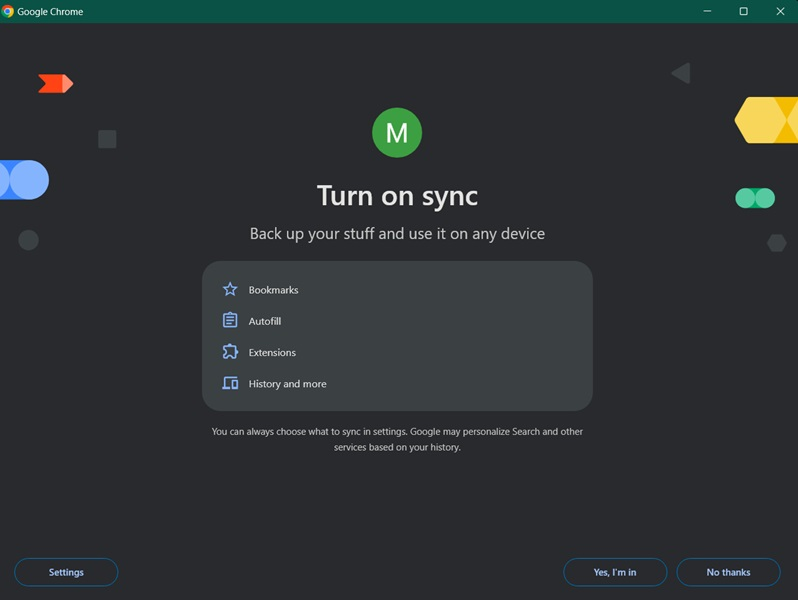
If you’ve been using this email in Chrome on another device, you have the option to turn on sync and access your bookmarks, extensions, or history from your PC.
Note: while profiles aren’t available in the mobile Chrome app, you can still port any bookmarks or history information on your PC if you browsed while logged in with the same Google account on your mobile device!
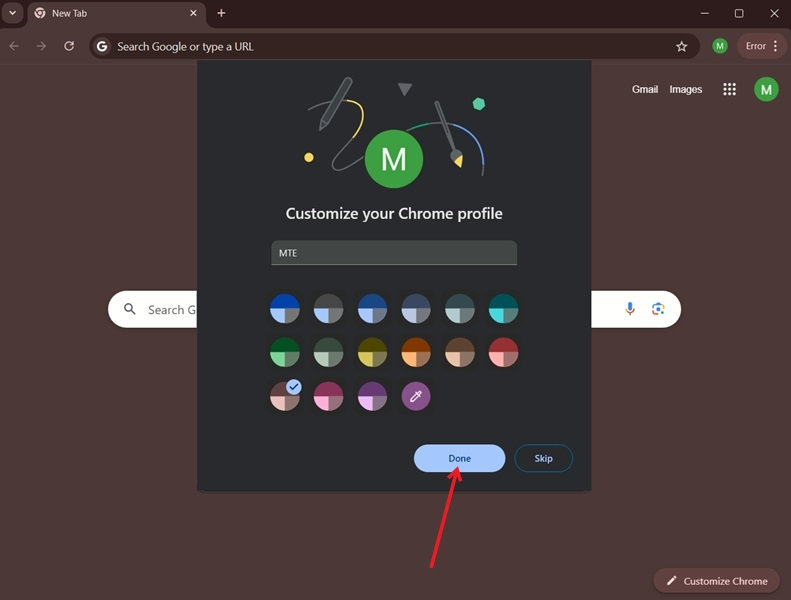
Finally, name your profile and select a color scheme. That’s it, you’ve now created your new profile.
Now you’ll see the profile listed the next time you launch the Google Chrome browser on your computer. If you don’t have the option to Show at startup enabled, you will find your profile by clicking on the small image in the upper right corner of the address bar and selecting your profile from there.
Tip: check how to enable Chrome extensions even while you’re browsing in Incognito mode.
How to Remove Profiles on Google Chrome
If you want to remove a profile (or more) from Google Chrome, it’s simple. Follow the steps below.
In your Google Chrome browser, click on your profile picture in the upper right corner of the display. Click on the tiny gear icon next to Other profiles.
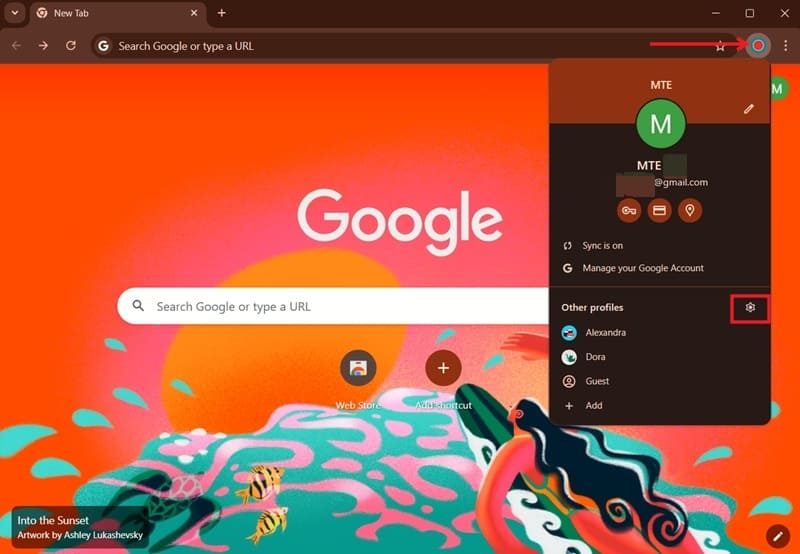
You’ll be taken to the screen where you can select your profile. Click on the three dots on the card of the profile you wish to remove. Select Delete.
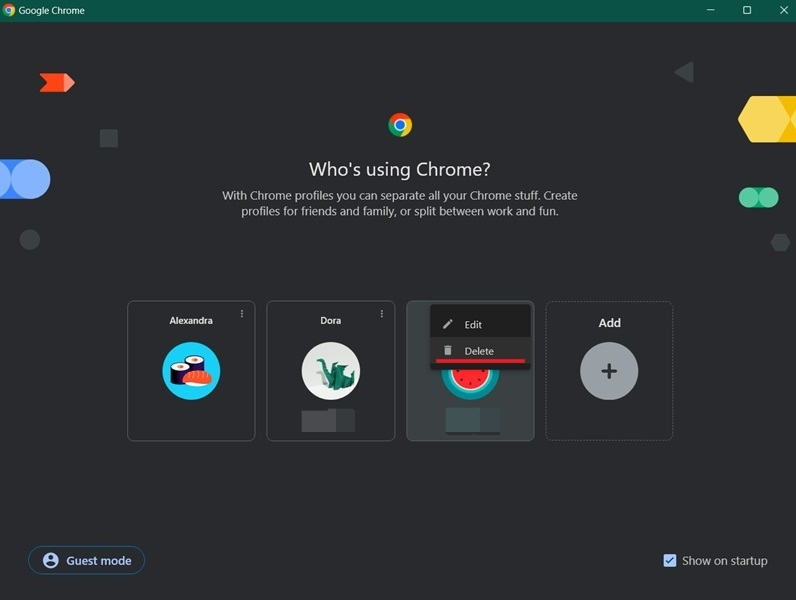
On the next page, confirm your decision to delete this profile. That’s it, your profile has been removed.
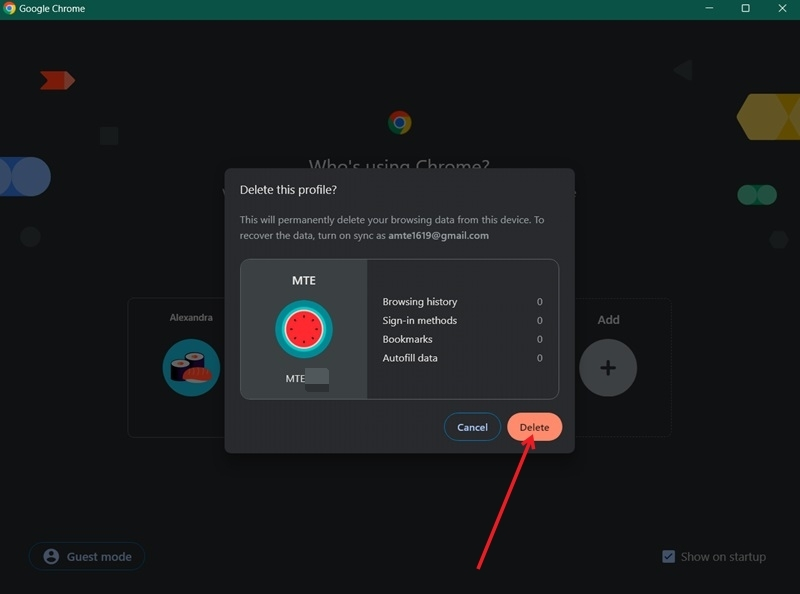
If you wish to delete another Chrome profile, follow the same steps again to remove it from your browser.

