You are using an unsupported browser. Please update your browser to the latest version on or before July 31, 2020.
You are viewing the article in preview mode. It is not live at the moment.
Home > Teaching Resources > Moodle > Grading & Gradebook > Adding Grade Items and Categories in Moodle
Adding Grade Items and Categories in Moodle

Adding Grade Categories

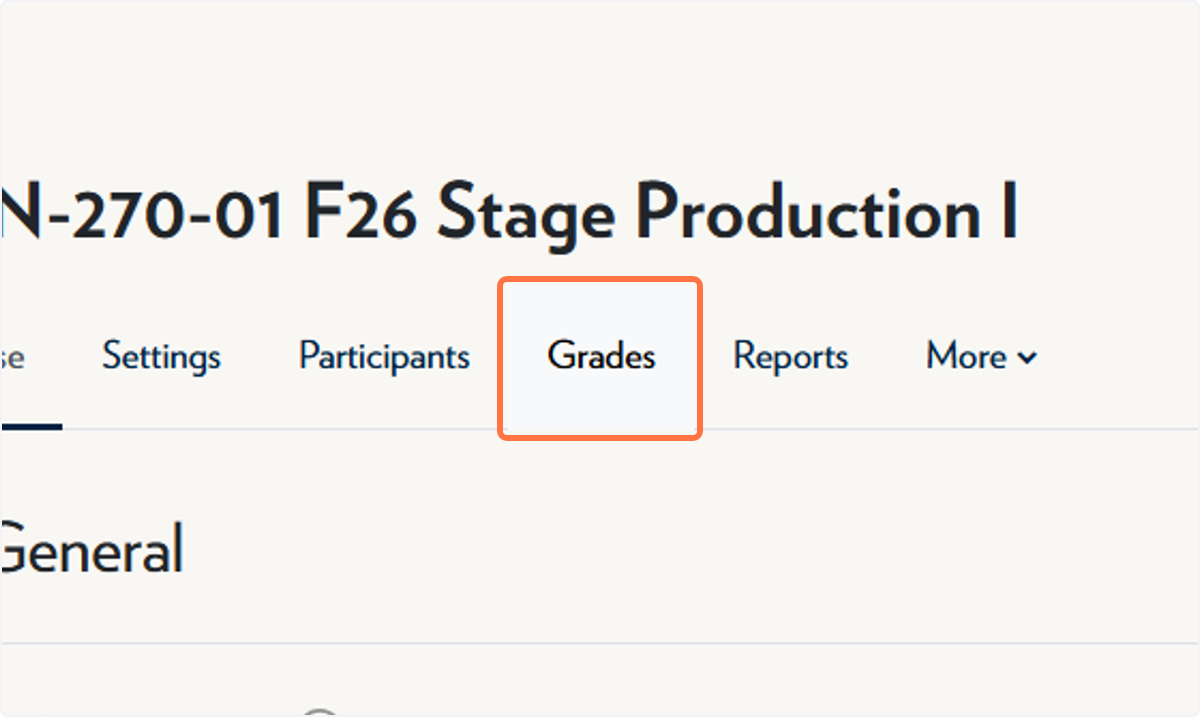
  1. Click on Grades.
    Click on Grades
  2. Open the Gradebook navigation menu and select Grader report.
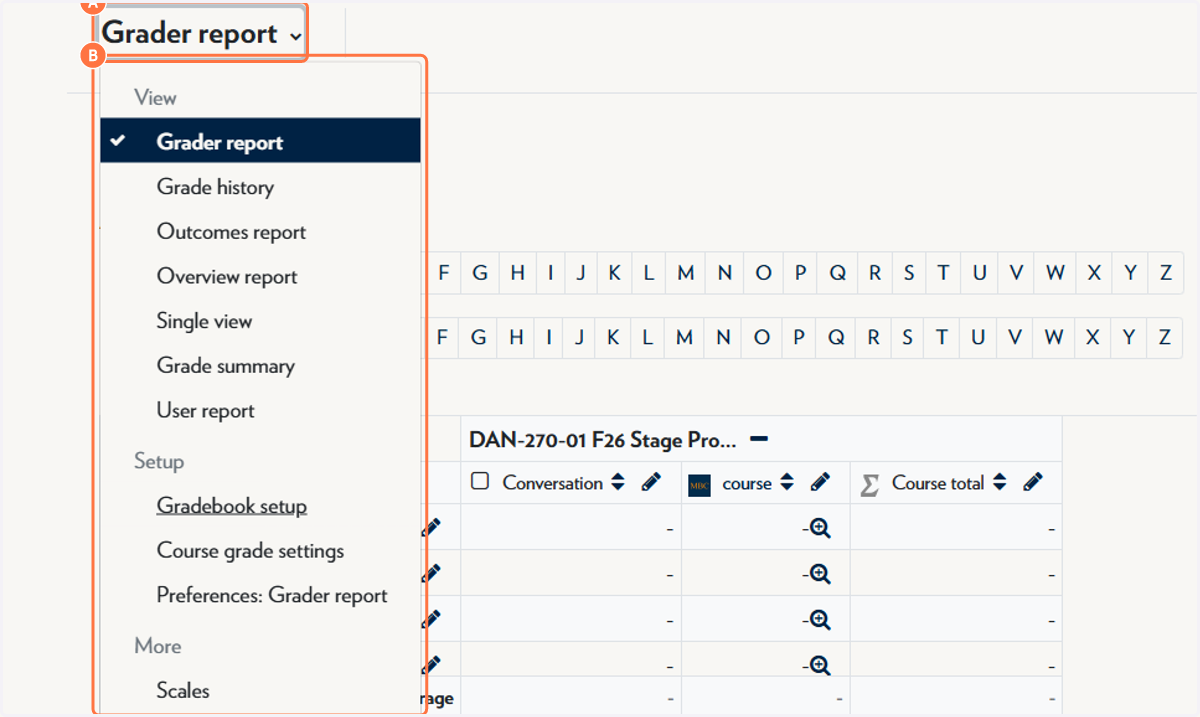
    Click on Gradebook navigation menu and select Grader Report
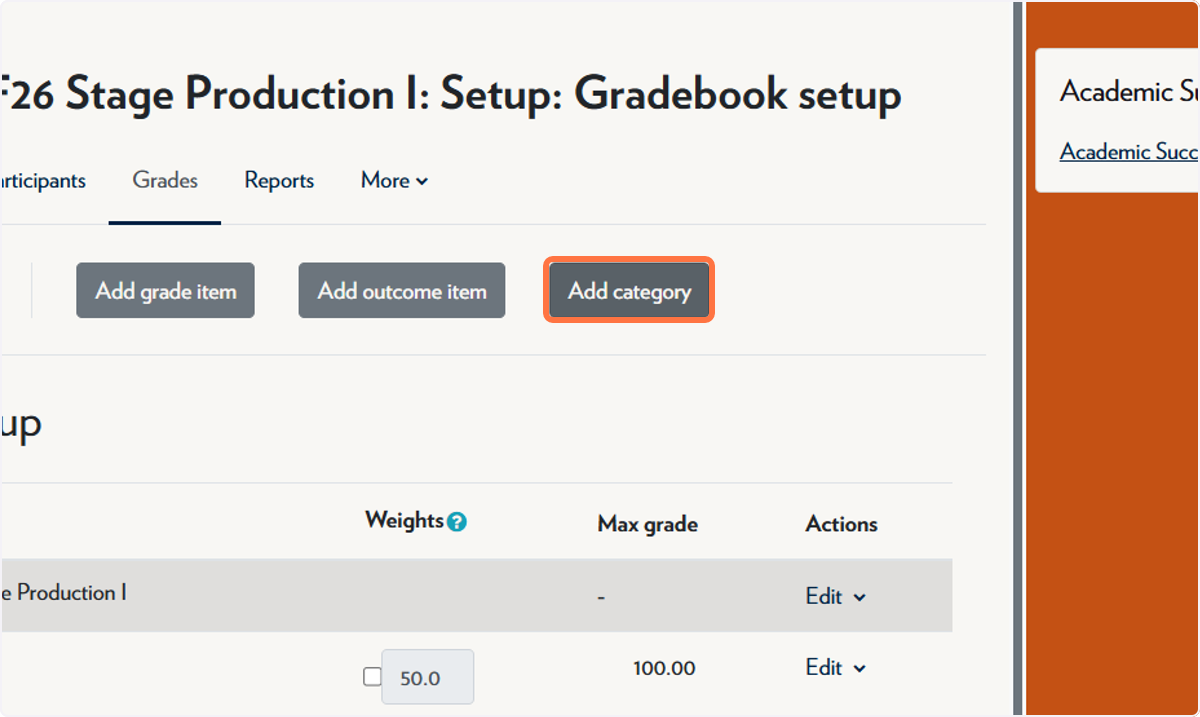
  3. Click on Add category.
    Click on Add category
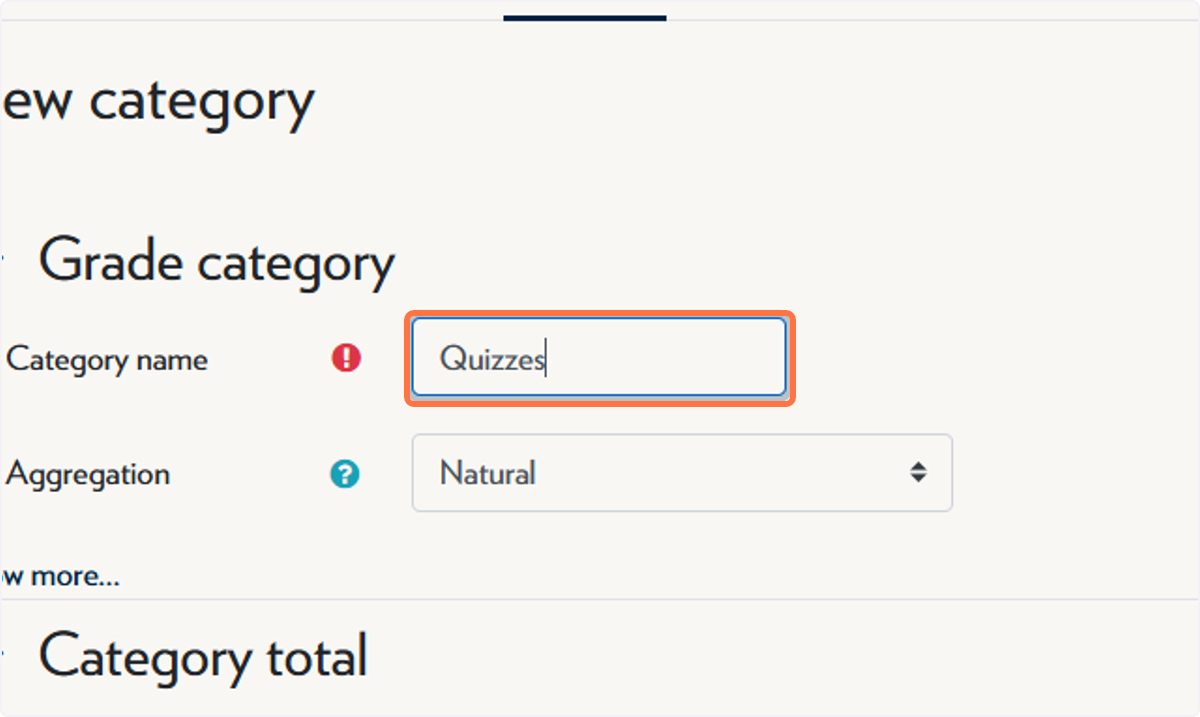
  4. Type the name of the category.
    Type the name of the category
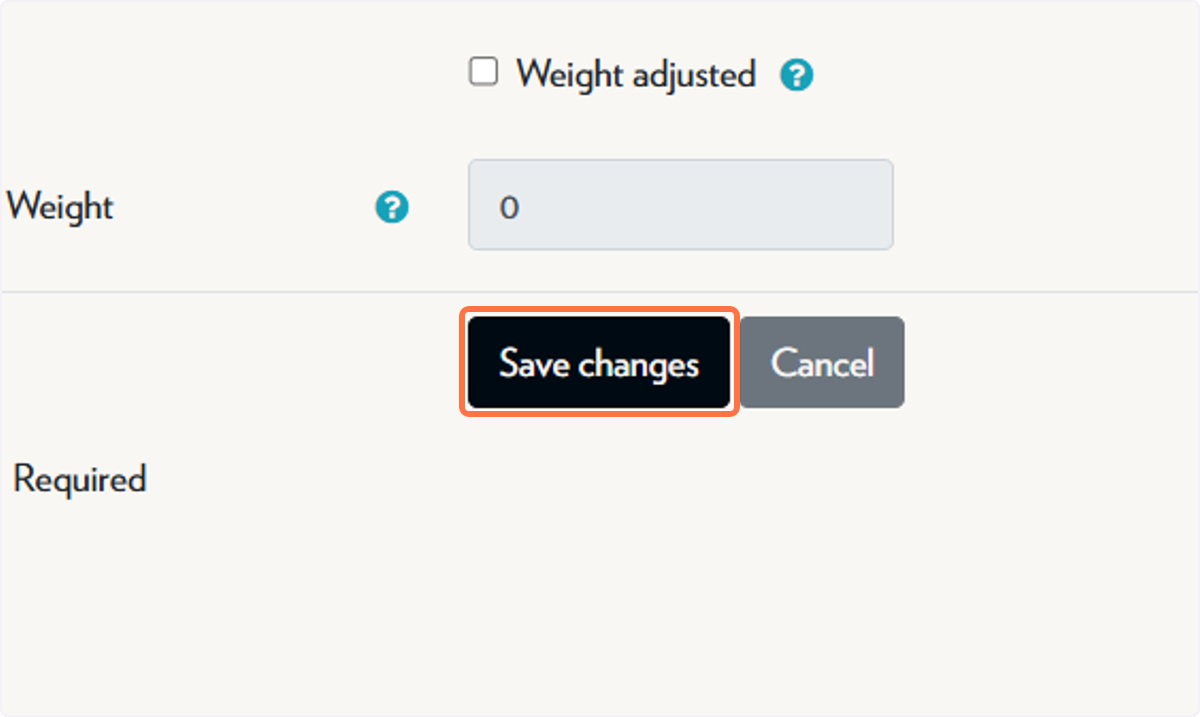
  5. Click on Save changes.
    Click on Save changes

Adding grade items

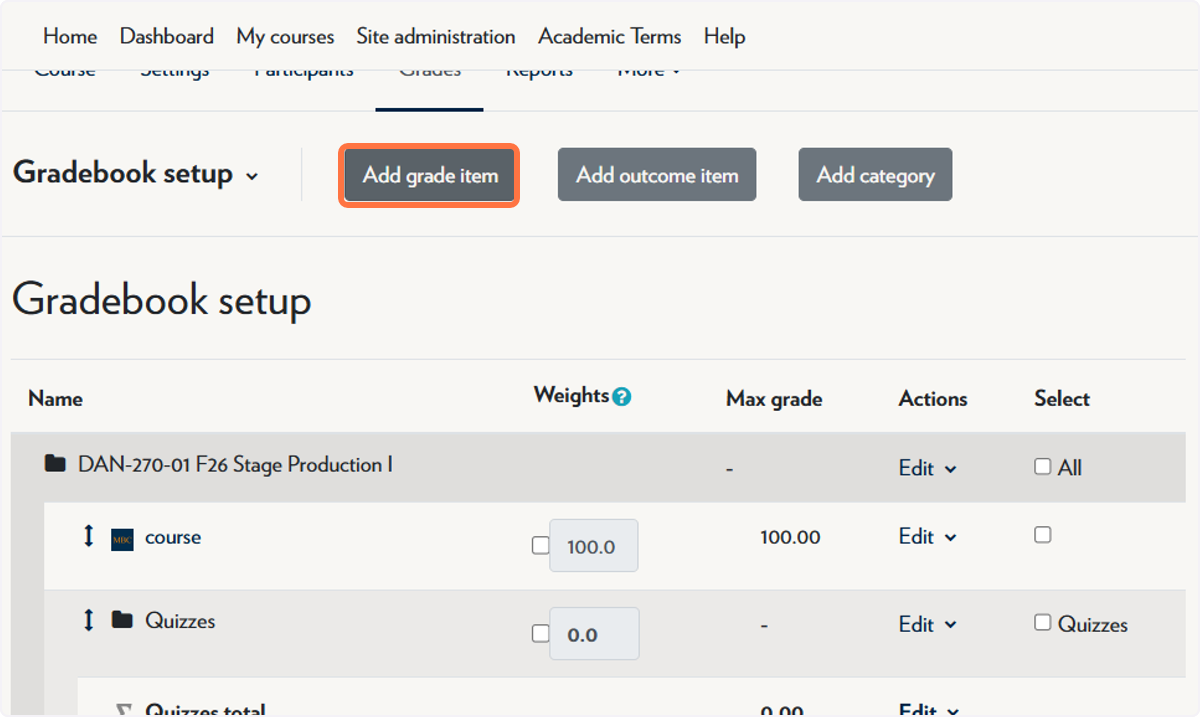
  1. Click on Add grade item.
    Click on Add grade item
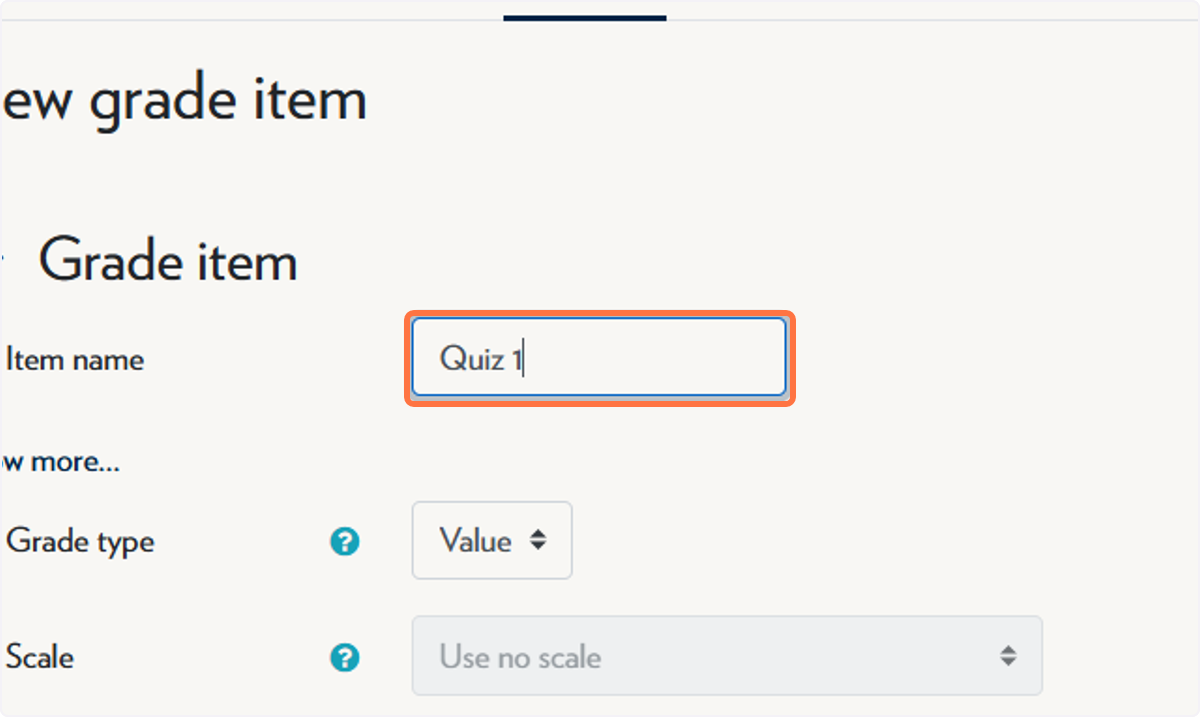
  2. Type the name of the grade item.
    Type the name of the Grade Item
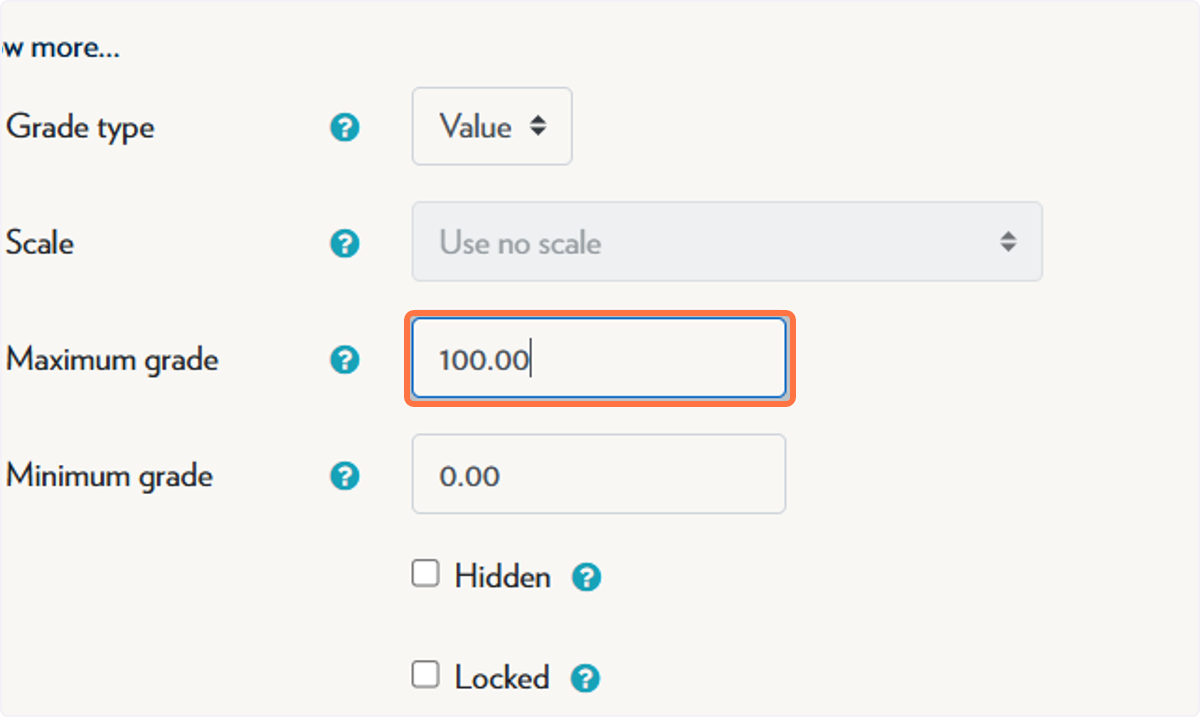
  3. Set the points or scale for the item.
    Set the points or scale for the item
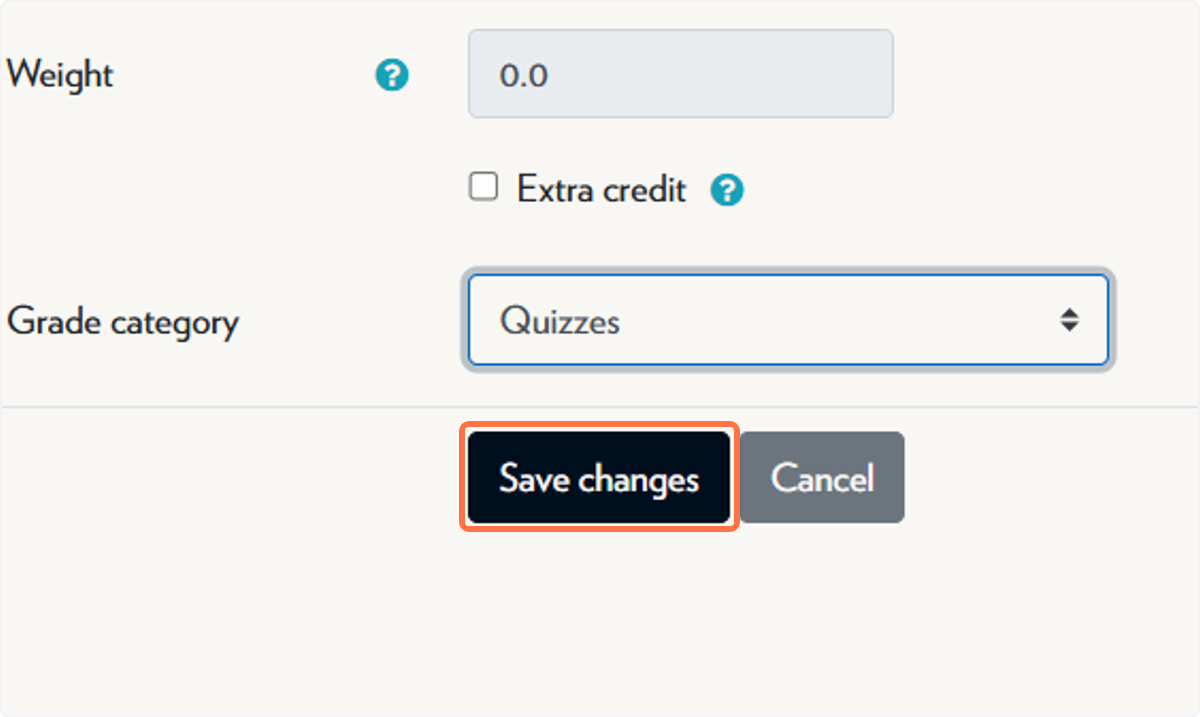
  4. If you'd like it to live inside a grade category, select that category before saving.
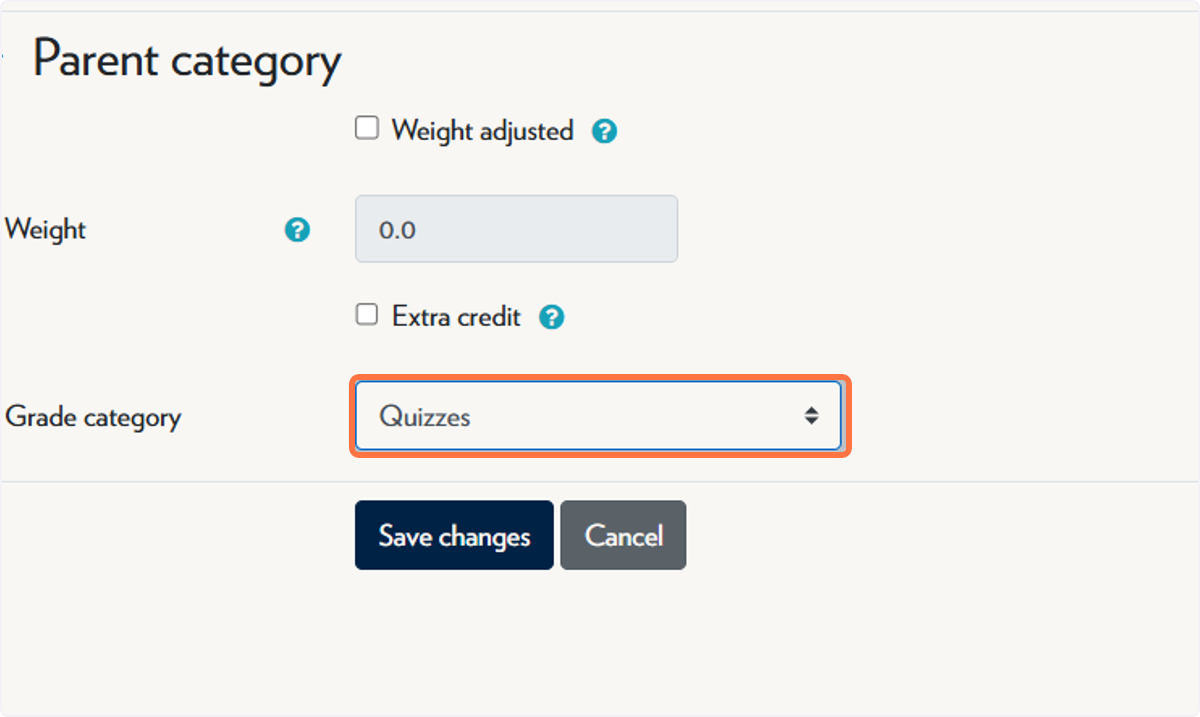
    If you'd like it to live inside of a Grade Category, select that category before saving
  5. Click on Save changes.
    Click on Save changes
Feedback
0 out of 0 found this helpful

scroll to top icon