

Cloning a Course From One Semester to Another

Last updated: Aug 11, 2026
703
views

[Note:] If you want to combine multiple sections of a course (create a meta-course), stop now and put in a ticket at helpdesk.hope.edu with the list of what sections you want combined. You will not be able to create a combined course yourself.
Course to Backup:
- Choose the source term from the Courses Menu.
- Login with 1Hope as the Professor of the course.
- Enter the course
- Click on “More “. Select “Course reuse” and then select “Backup”
- Important: DO NOT choose import. (That can destroy your course.)
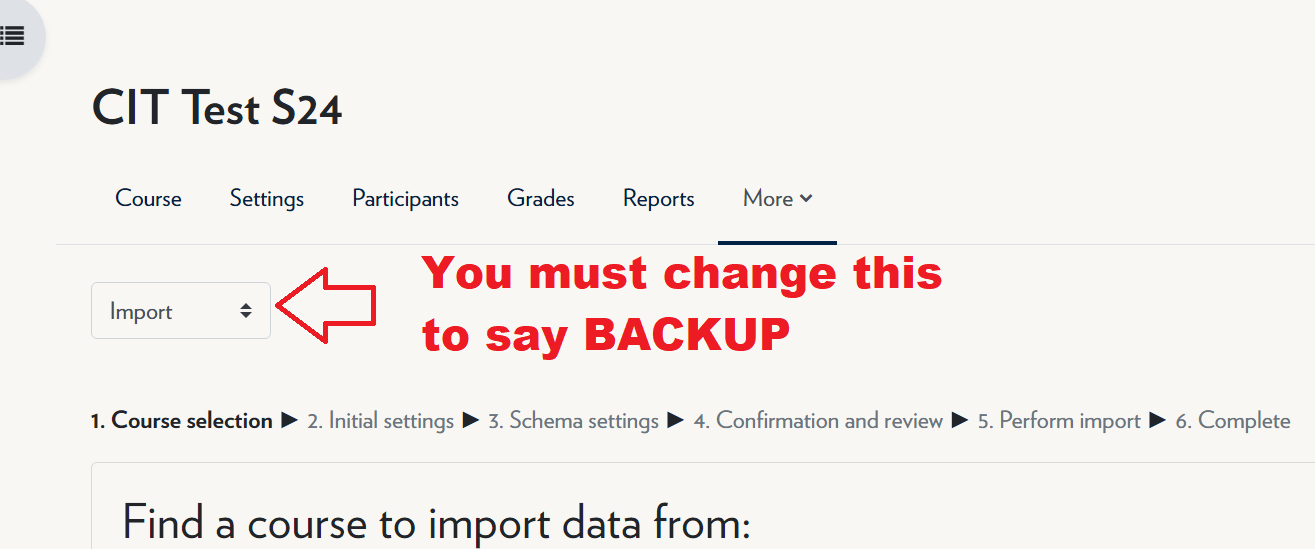
- Backup settings
- Uncheck “Include legacy course files”
- Next.
- Uncheck “Include legacy course files”
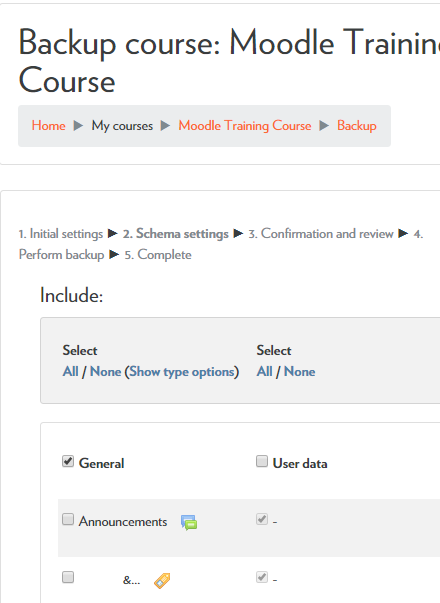
- Schema settings
- Uncheck the Announcements Forum (or News forum in older versions)
- Uncheck anything else that you do not wish to copy.
- Click Next.
- Confirmation and review
- Perform Backup
- Complete
- Continue
- Backup settings
- You will now find that you have a new backup file in your Course backup area that you Download to your machine.
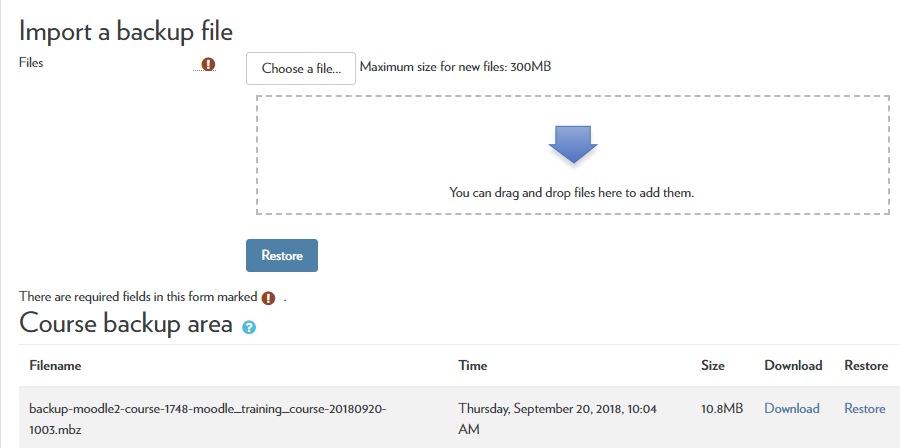
- Take note of the name and location of the backup file you just downloaded to your computer for use in step 9.
- Click the “Manage Backup files” button at the bottom of the screen. Click on the file name and select the Delete button. Confirm that you wish to delete it. Then click on the Save Changes button.
Restore into Your New Course:
- Pick the target term from the Courses Menu.
- Go into the destination course.
- Click on “More “ menu. Select “Course reuse” and then select “RESTORE” in the pulldown.)
- NOTE: Do NOT choose import. (That can destroy your course.)
- In the “Import a backup file” section, drag the backup file into the drag and drop box (or select “Choose a file”). The file that was downloaded from your other course should be in your “downloads” folder. Click the Restore button.
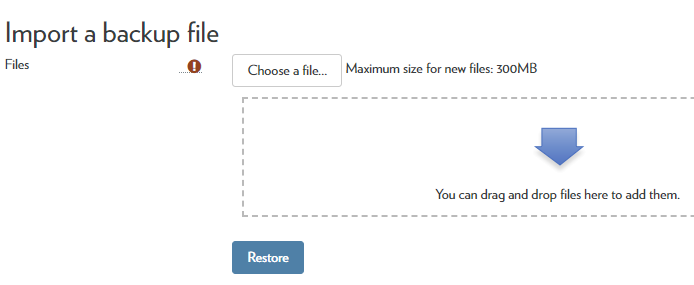
- Click the Continue button--scroll down and see it at the bottom right of the page.
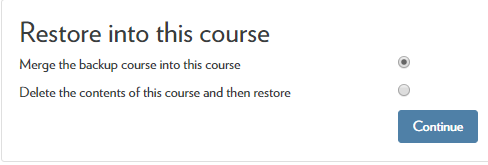
- In the “Restore into this course” section select "Merge the backup course into this course" and click Continue
*** Do NOT select “Delete ***
- Next
- Next
- Perform restore
- Continue
[Do not be alarmed by a warning that, "The role in the backup file cannot be mapped to any of the roles that you are allowed to assign." Moodle will assign the right roles automatically] - Your course content should now be cloned, and you can click Continue to proceed to your new course. NOTE: Your students can't see the course yet.
- When you have your course ready for student use, click Administration -> Edit settings and set the Course visibility setting to Show. (for moodle 4 click on “Settings” and set the “Course visibility” setting show “Show”)

