


Emailing a Class using the Hope App

Mar 20, 2026
 1005
1005
Email Your Class (Manual Method)
Overview
You can email your class using My College Account to generate a recipient list. This allows you to quickly create an email draft with your selected students.
💡 Recommended: For most cases, use Moodle messaging instead. It automatically stays up to date with adds, drops, and withdrawals.
Step-by-Step Instructions
1. Enable Gmail as your default email handler
If prompted, allow Gmail to open email links.

If the option does not appear, see the section below to re-enable it.
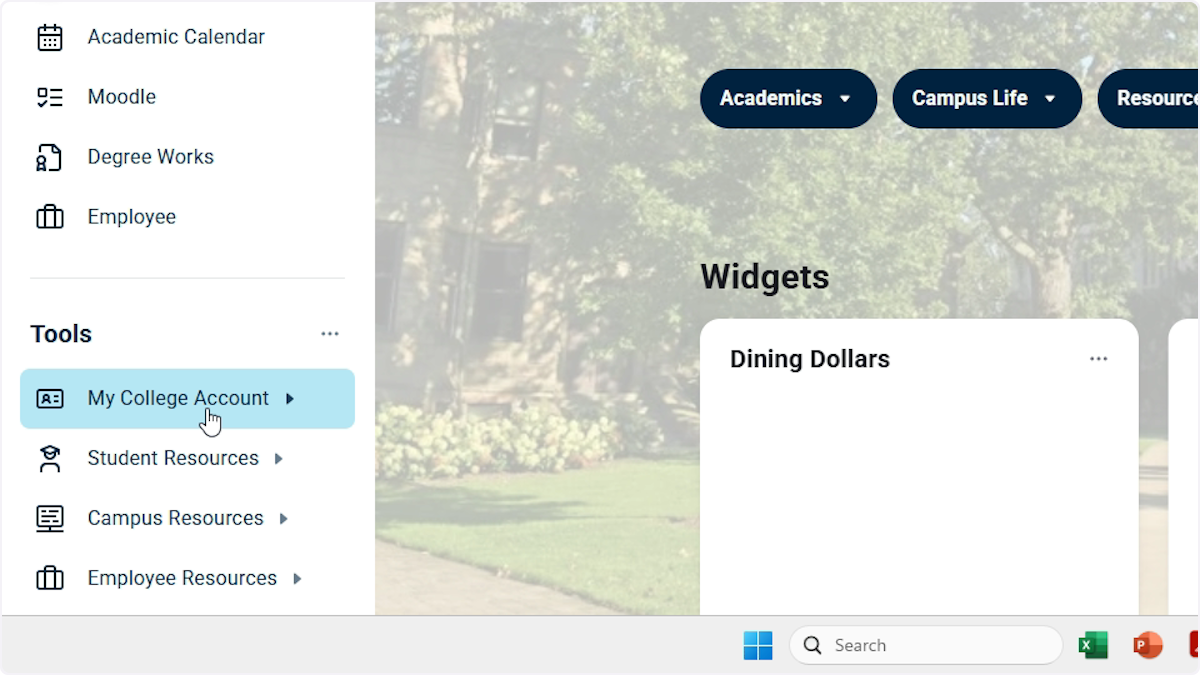
2. Go to My College Account
- Navigate to app.hope.edu
- Click My College Account → Faculty
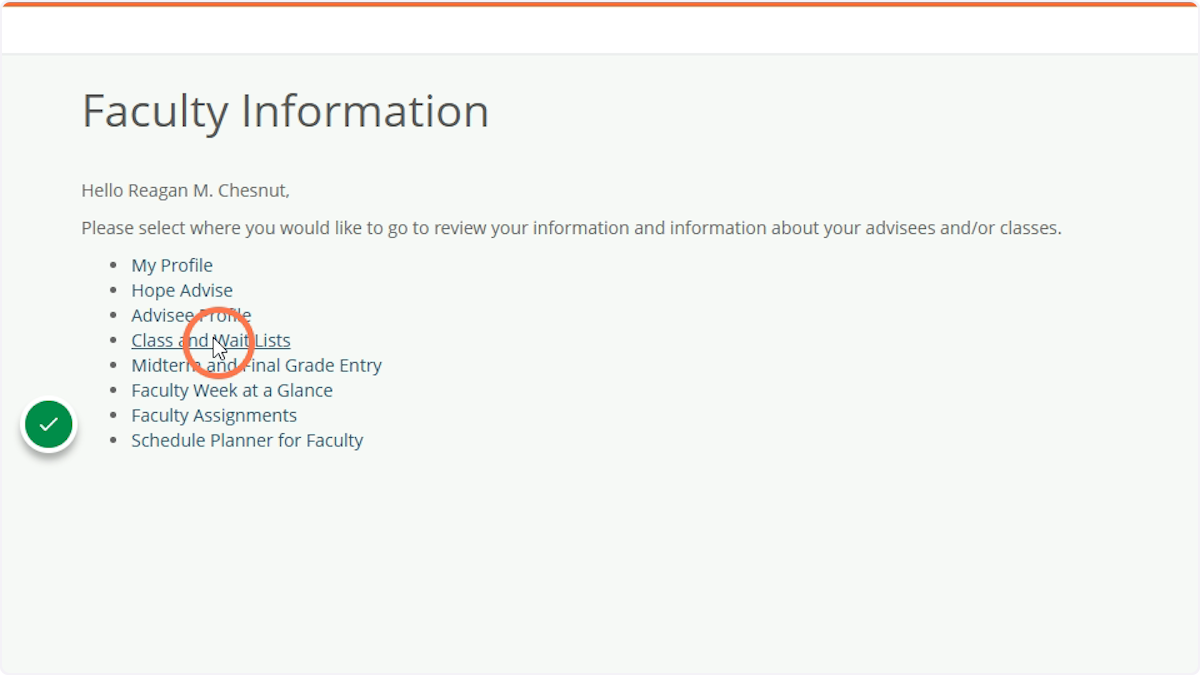
3. Open Class and Wait Lists
- Click Class and Wait Lists
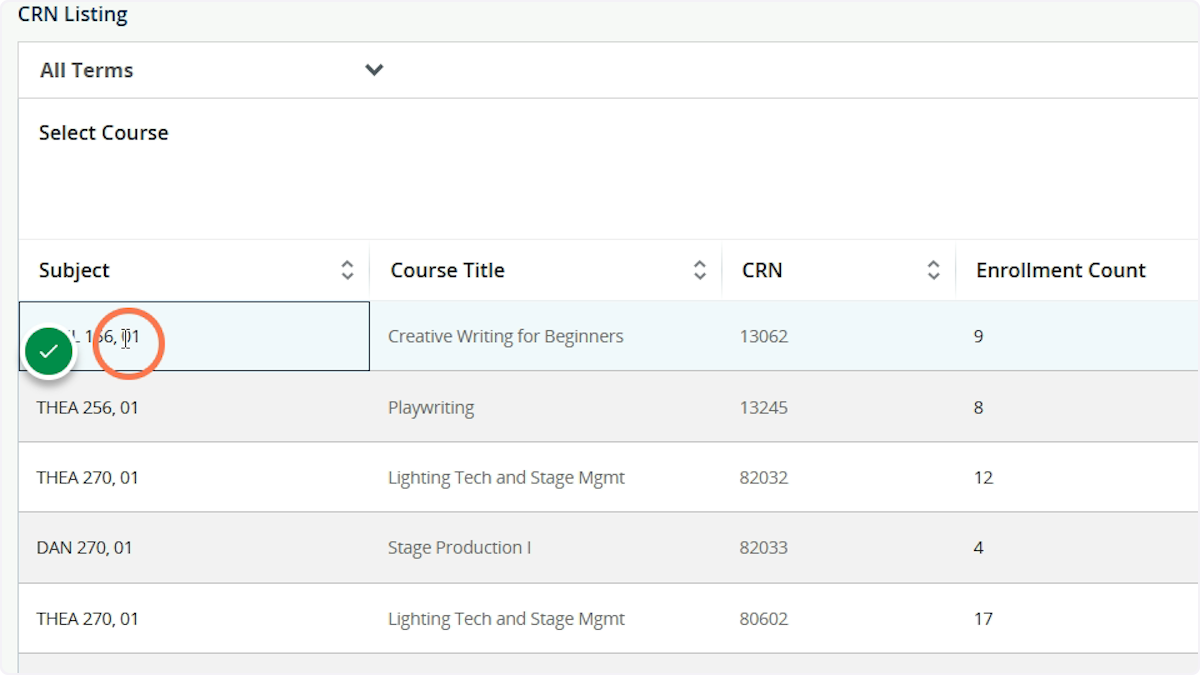
4. Select Your Class
- Click the class you want to email
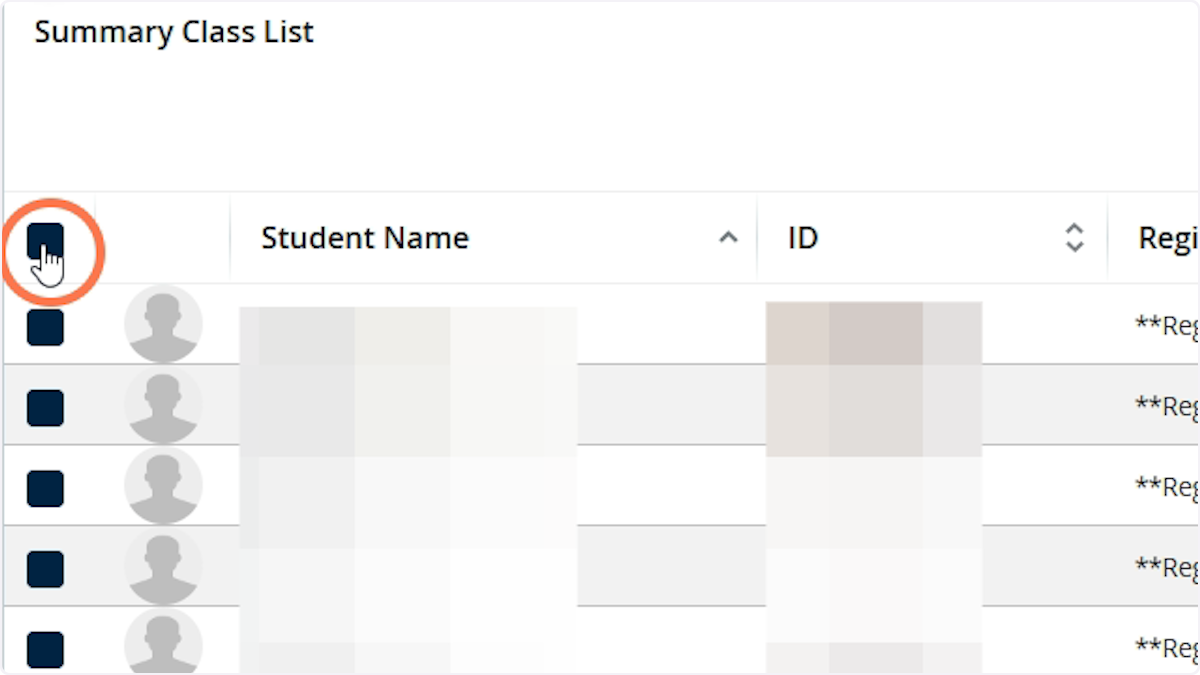
5. Select Students and Send Email
- Choose the students
- Click the envelope icon to open Gmail
How to Re-Enable Gmail as Default (Chrome)
1. Open Chrome Settings
- Click the three-dot menu → Settings
2. Go to Privacy and Security → Site Settings
3. Open Protocol Handlers
- Remove Gmail from "Not allowed"
4. Return to Gmail
- Click the handler icon
- Select Allow → Done
Summary
This method allows you to quickly generate an email to your class, but requires manual selection. For ongoing or frequent communication, Moodle messaging is the more reliable option.

