


How students view/save their schedules in My College Account/Hope App

Jan 15, 2026
 53
53
Now that plus.hope.edu is gone, what’s the best way to see the locations of your classes? Is there a way to save a PDF of your schedule details? Yes!
In the Hope App (make sure you are using app.hope.edu in a computer browser*):
- Under Tools, go to My College Account, then select Student Registration
- Select View Registration Information
- Select the term you would like to view your schedule for
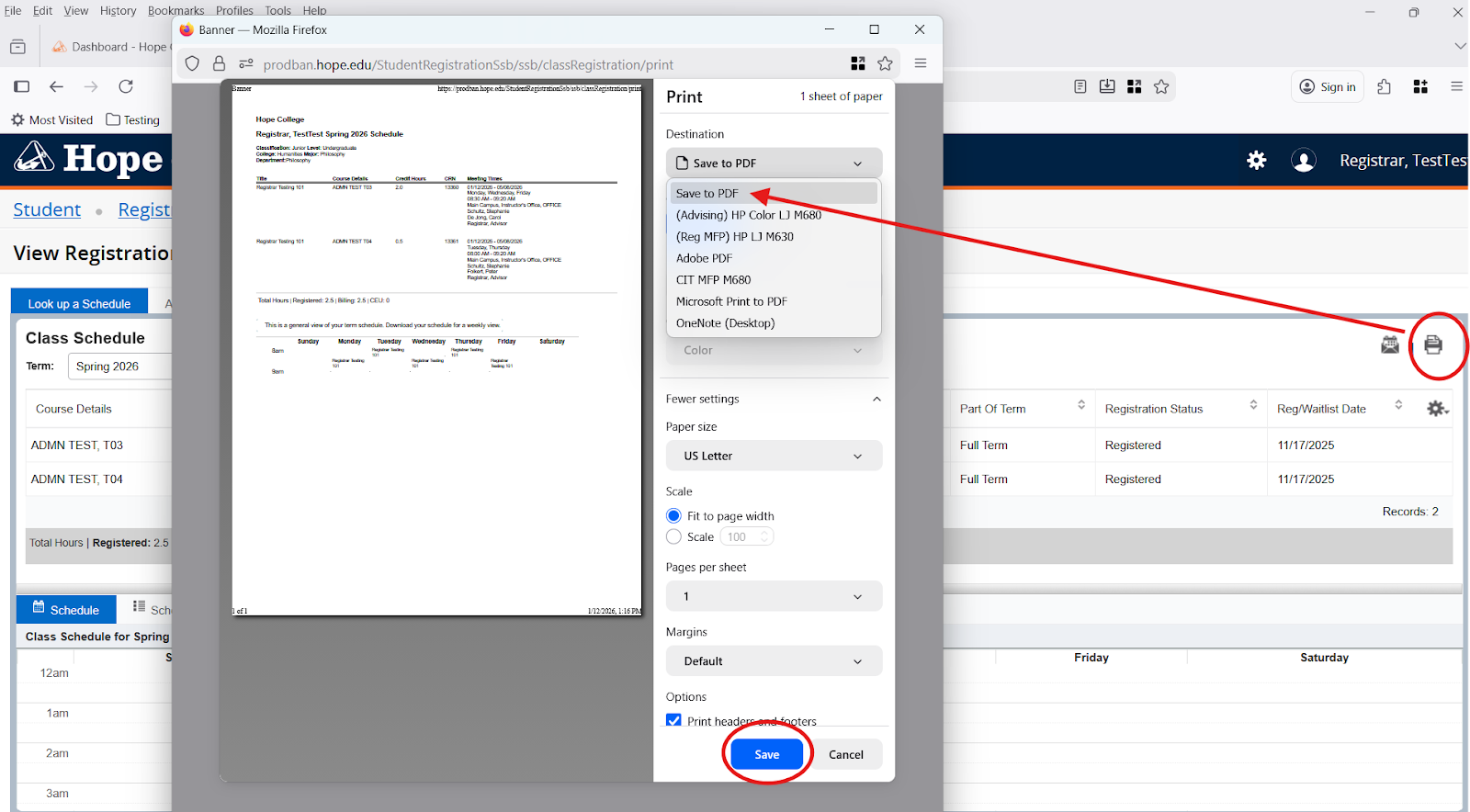
- At the top of the panel, select the printer icon.
- On the printer popup, select Save to PDF as the destination. You can also print to a printer if you prefer a hard copy.
- Save the PDF to your computer.
*We recommend using a computer browser to view registration and schedules because smaller screens get funky and cut things off in My College Account. However, we understand that it’s more convenient to have your schedule on your phone. If you want to try accessing your schedule from the app on your phone and saving a screen shot, go for it, but we highly recommend you compare it to your schedule on your computer to make sure all your classes are listed and nothing is missing/cut off.

