



 434
434
Stepping out for a moment to get cup of coffee? It's not a great idea to just leave your work computer unlocked. Think of all of the sensitive documents, saved passwords, personal emails, and more that we entrust our computers with. It makes sense to get into the habit of locking your computer when you walk away from your desk. Luckily, it's easy!
Windows
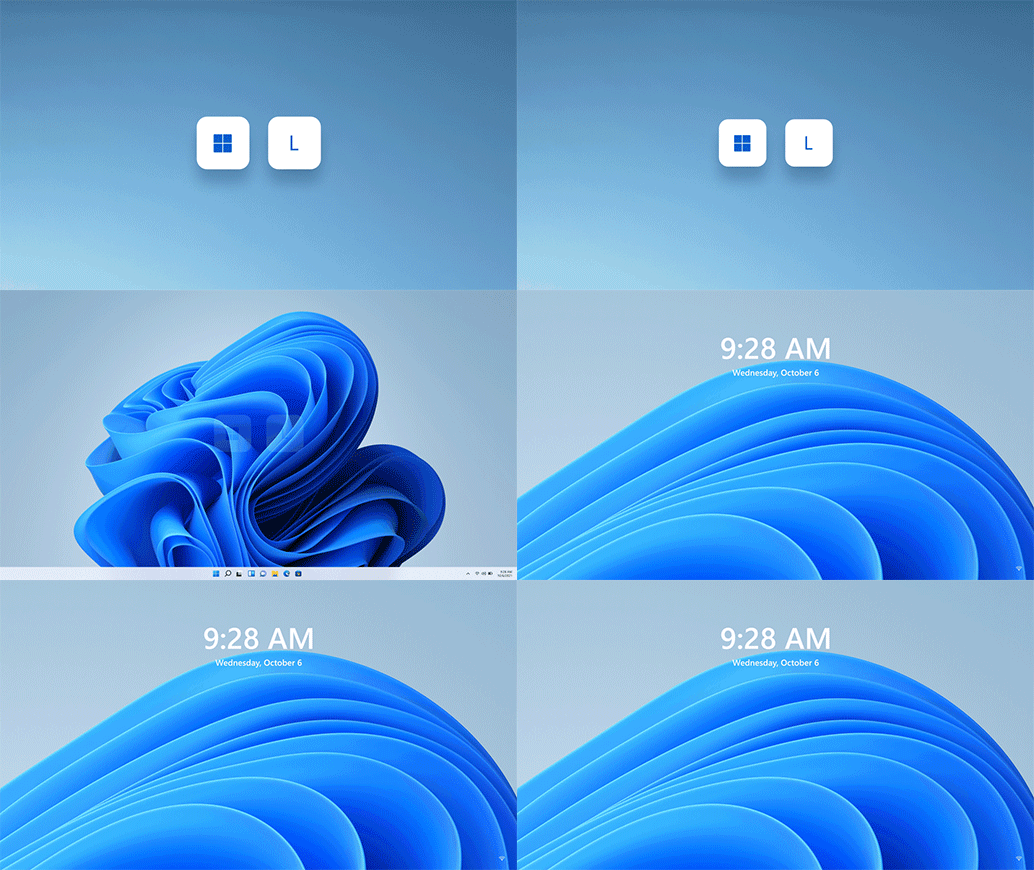
Image courtesy of the Windows 11 Features page on microsoft.com
On our standard Windows laptops and desktops, simply press Win + L (for "lock"!) to lock your screen. You computer stays on, but you simply need to enter in your password to resume using it.
By default in Windows 11, when you close your laptop's lid, it locks the computer and goes to sleep. If you'd prefer to just have the computer lock but stay on, you can customize this behavior by clicking Start → "Settings" and search for the word "Lid" in the top left corner. That will offer up the setting to "Change what closing the lid does".
macOS
On Macs, if your keyboard has a Touch ID sensor, you can simply press it to lock the screen. You can also click the Apple icon in the top left corner → "Lock Screen".
By default, simply closing the lid on your Macbook will also lock the screen.
See Apple's help documentation on locking your screen for more information.

