


Need general help instead? See What to Do If Your Computer May Be Compromised.
See the actual email: DocuSign-themed document review phishing email (Phish Bowl)
What Happened?
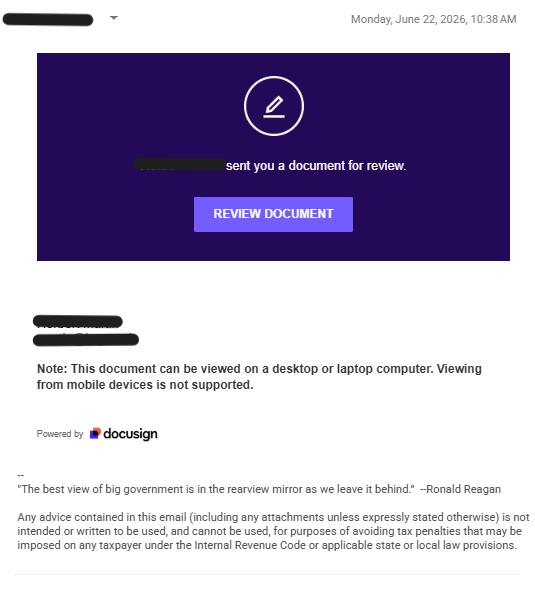
Between June 19 and June 22, 2026, CIT responded to a phishing campaign that appeared to come from a Hope College employee or student and asked recipients to view a document through a document review service. However, clicking the link directed them to a website that falsely claimed Adobe Reader needed to be updated before they could view the document. Users who downloaded and ran the file installed software that may have given an attacker remote access to their computer.
What Did the Email Look Like?
The message typically:
- Appeared to come from a legitimate Hope email account.
- Claimed a document had been shared for review.
- Included a Review Document button.
- Used DocuSign branding or a similar appearance.
What Happened After Clicking?
Recipients were redirected to a webpage that displayed a message shows below:
Your Acrobat Reader is outdated and cannot open this document. Please update to continue.
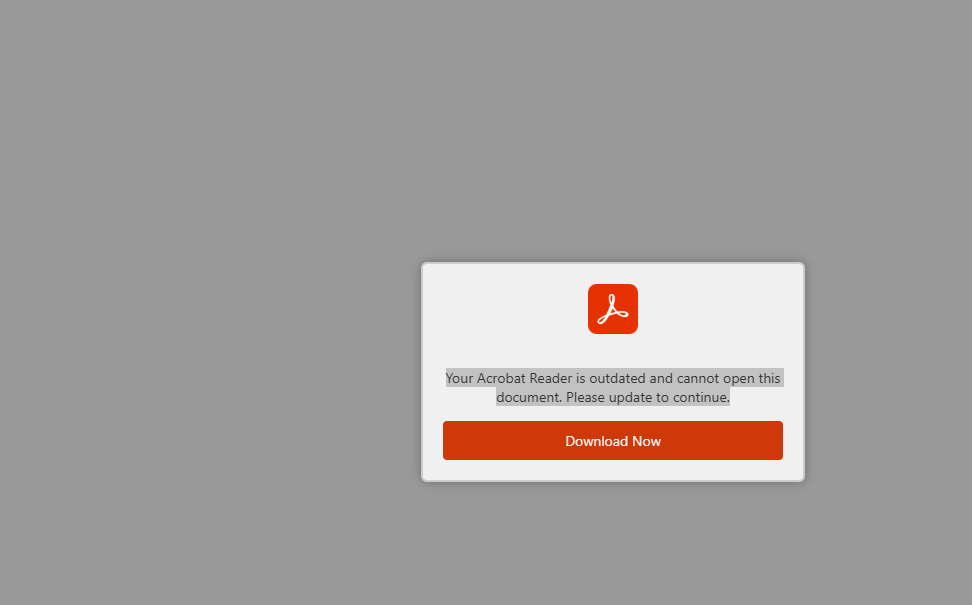
The page encouraged users to download a file that appeared to be an Adobe update.
The file was not a legitimate Adobe product.
What Software Was Installed?
Investigators found software including:
- ScreenConnect
- HideUI
These programs allowed attackers to remotely access affected computers.
Was I Affected?
Approximately 600 Hope accounts clicked the phishing link.
Clicking the link alone does not necessarily mean a computer was infected.
The greatest risk was to users who downloaded and ran the file.
What Should I Do If I Clicked the Link?
There is no risk to you and you can safely ignore this notice if:
- You clicked the link from a Macbook or Mobile phone.
- You clicked the link and then left the page before downloading anything.
There is some risk and you should follow the steps below if:
- You clicked the link on a windows computer and downloaded the 'Adobe update'.
There is high risk and you should contact CIT aswell as follow the steps below if:
- You clicked the link on a windows computer, downloaded the 'Adobe update', and ran the downloaded program.
How to Check If This Software Is on Your Computer (Windows)
You can look at your list of installed programs to see whether any remote-access software was added.
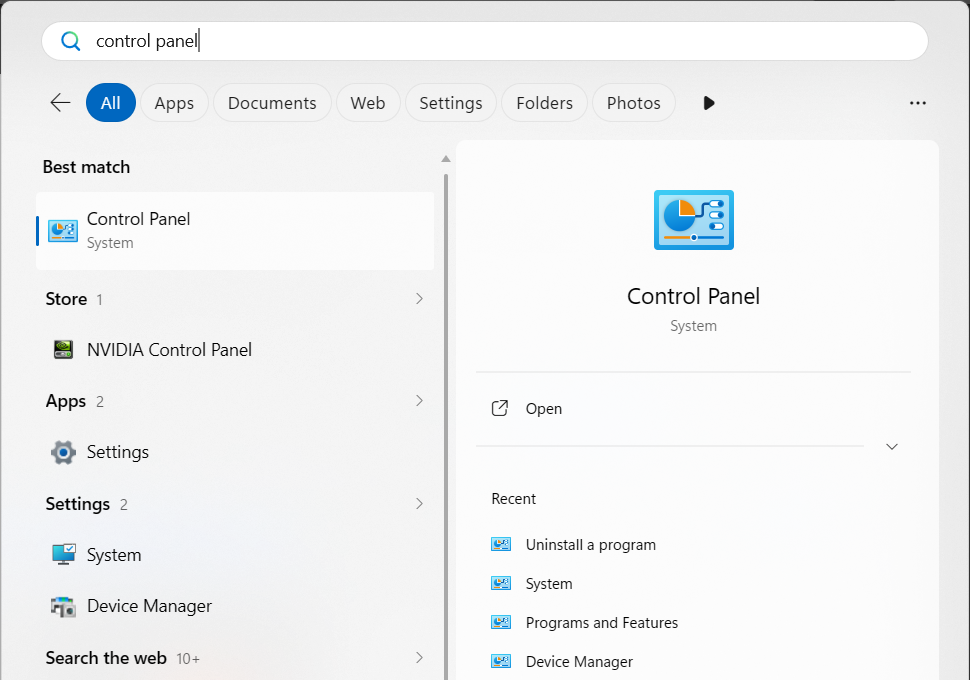
- Open the Start menu, type Control Panel, and open it.
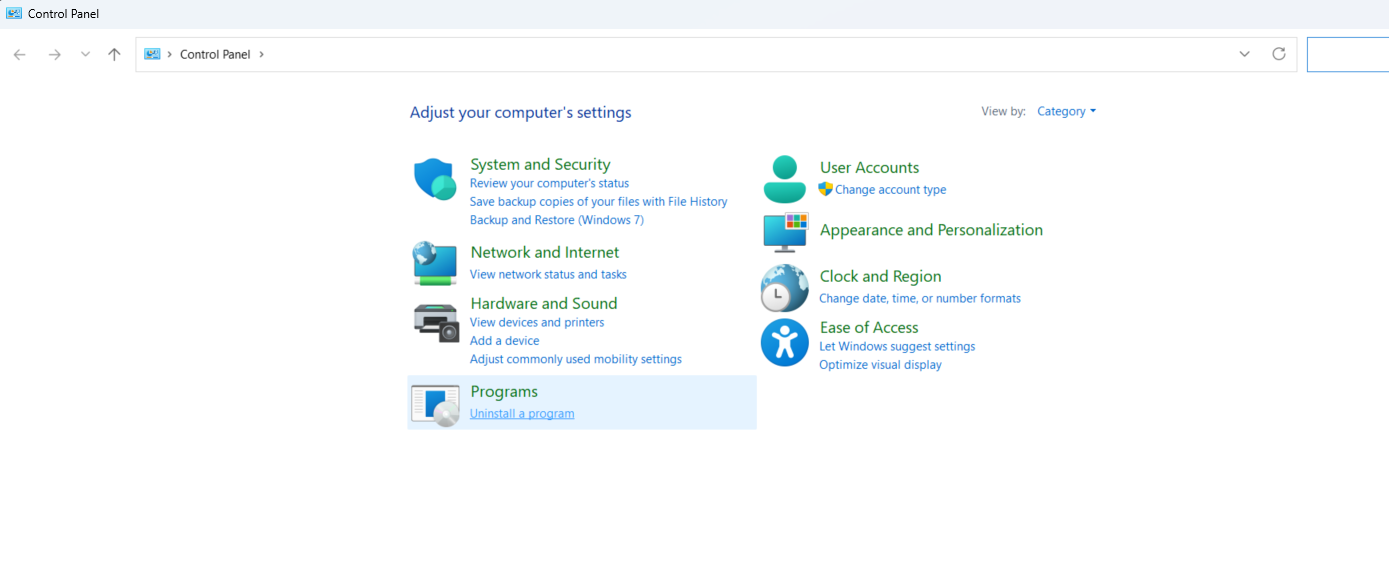
2. Click Programs > Uninstall a program. (Or go to Settings > Apps > Installed apps.)
3. Look through the list.
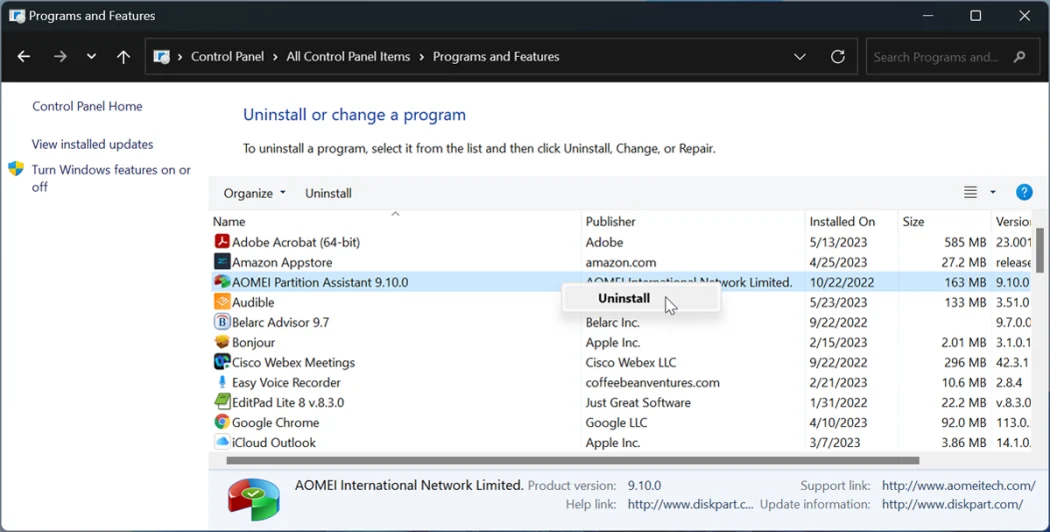
Watch for anything you don't recognize, especially:
- ScreenConnect — may also appear as "ScreenConnect Client" or "ConnectWise Control"
- Datto RMM
- HideUI
Names and install dates can vary slightly. Sorting by the Installed On date makes it easier to spot anything added around June 19–22, 2026.
⚠️ Found one of these? Do not uninstall it yourself — that can remove evidence CIT needs. Immediately power down your computer and contact the CIT Help Desk right away.
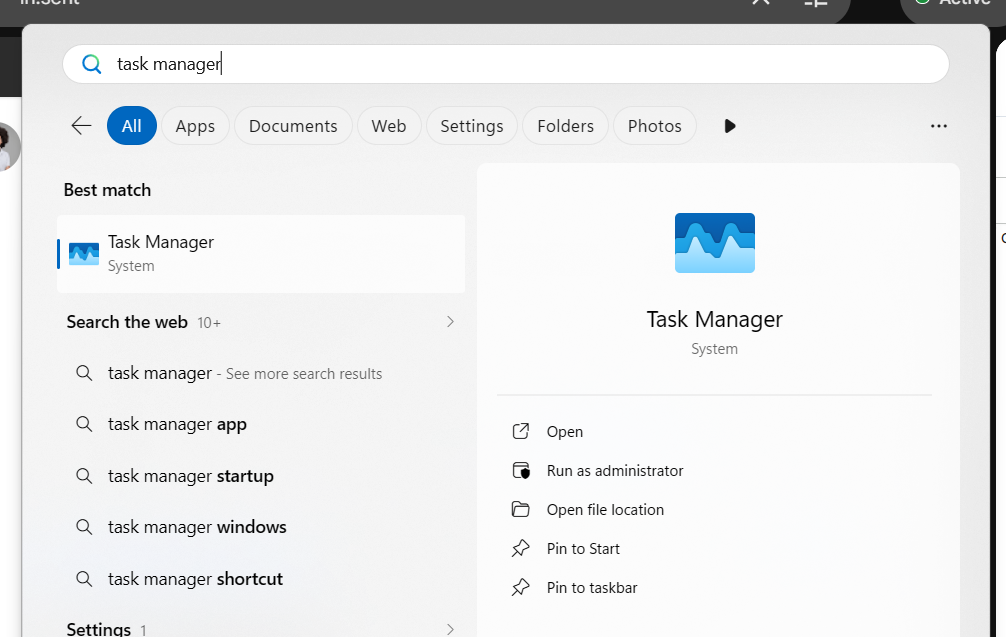
4. Next, open up Start Menu, type Task Manager, and open it
5. Search for ScreenConnect and HideUI
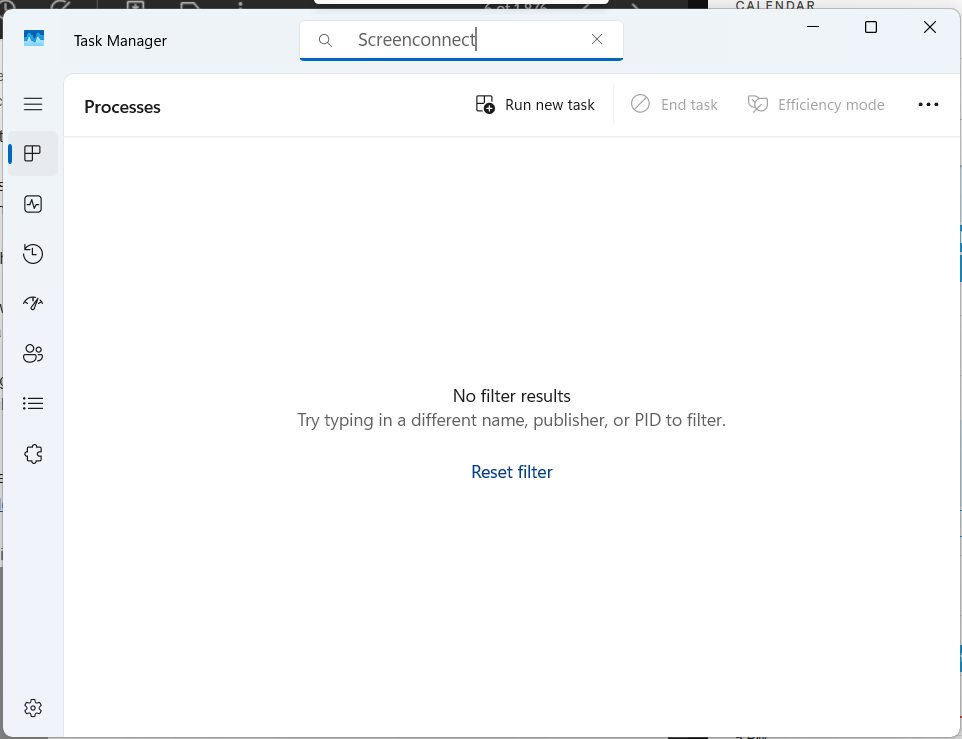
What to look for
Watch for anything you don't recognize, especially:
- ScreenConnect — may also appear as "ScreenConnect Client" or "ConnectWise Control"
- Datto RMM
- HideUI
There may be lots of weird looking process running, we are only concerned about the 3 listed above. If you see other processes that concern you feel free to open a new ticket with the CIT.
⚠️ Found one of these? Do not uninstall it yourself — that can remove evidence CIT needs. Immediately power down your computer and contact the CIT Help Desk right away.

