You are using an unsupported browser. Please update your browser to the latest version on or before July 31, 2020.
close
You are viewing the article in preview mode. It is not live at the moment.
Home > Password, Login, & User Accounts > Retrieving Saved Passwords
Retrieving Saved Passwords
print icon

Before transitioning, you may need to retrieve passwords currently stored in your web browser. The new login page is 'accounts.google.com', and your saved password was for 'sso.hope.edu' so your saved password may not carry over.


Each browser stores your passwords in a slightly different way. Below are some instructions for each browser. 
 

Browser

Navigation Path

Google Chrome

Settings > Autofill and Passwords > Password Manager

Safari (Mac)

Settings > Passwords

Microsoft Edge

Settings > Profiles > Passwords

Firefox

Settings > Privacy & Security > Logins and Passwords


Step-by-Step Instructions for Google Chrome:


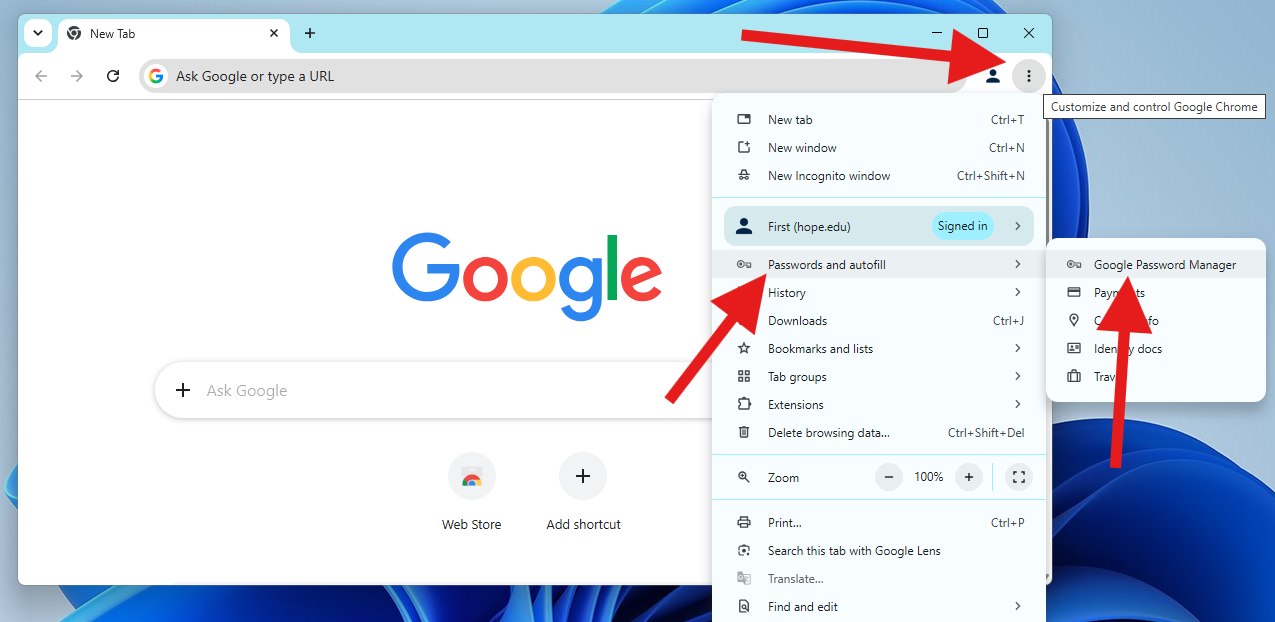
  1. Open the Google Chrome browser and click the 3 dots(⋯) at the top right
  2. Click 'Passwords and autofill'.
  3. Click 'Google Password Manager'.


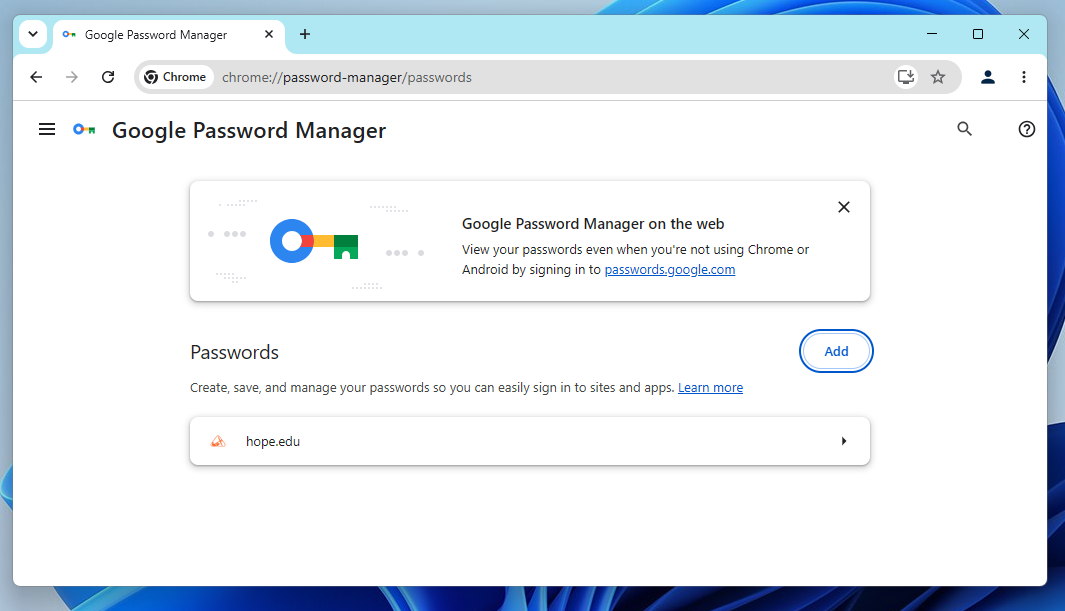
4. You should see a list of all your saved passwords. Look for and select hope.edu or sso.hope.edu. You may be prompted for a password, enter the password used to unlock your computer.
(if you dont see the password here it might be saved in another app like Apple Passwords, Keeper, 1Password, etc.)


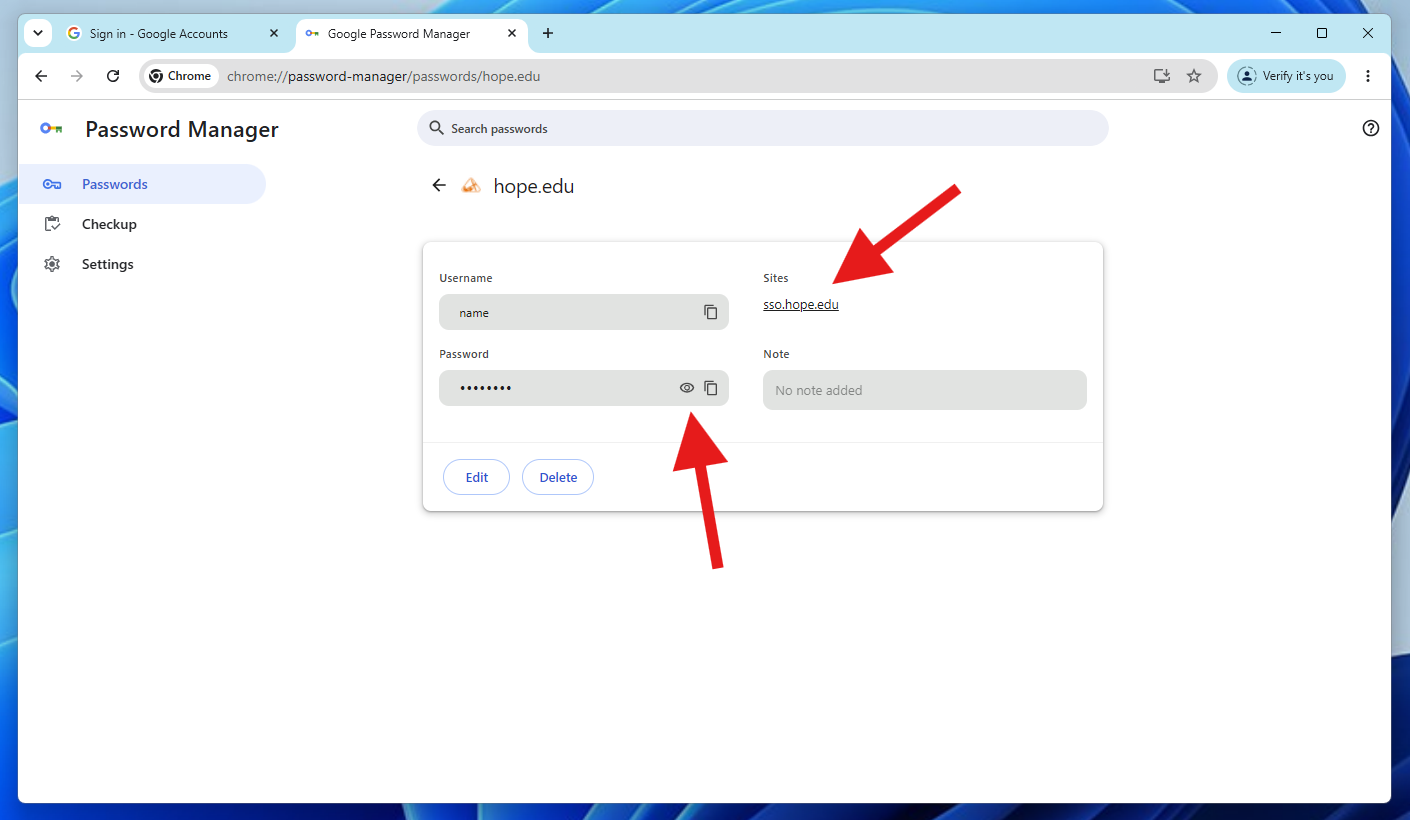
5. You will likely have more than one password saved for hope.edu. Look for one where the 'Sites' section shows 'sso.hope.edu'. Click the eye in the 'Password' input field and it will show you the current password saved. You can then use that on 'accounts.google.com'


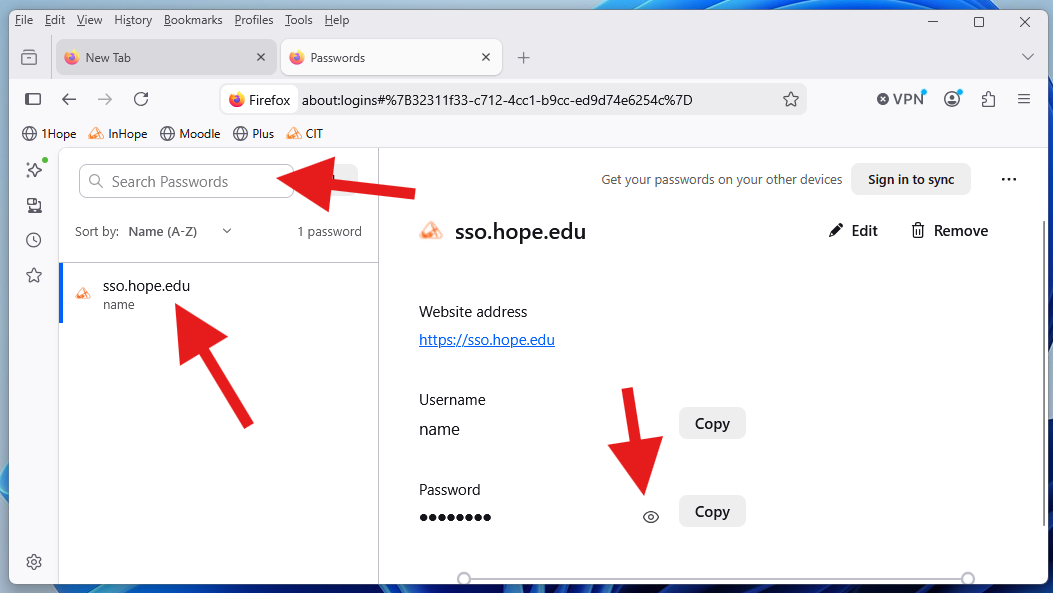
 Step-by-Step Instructions for Firefox:


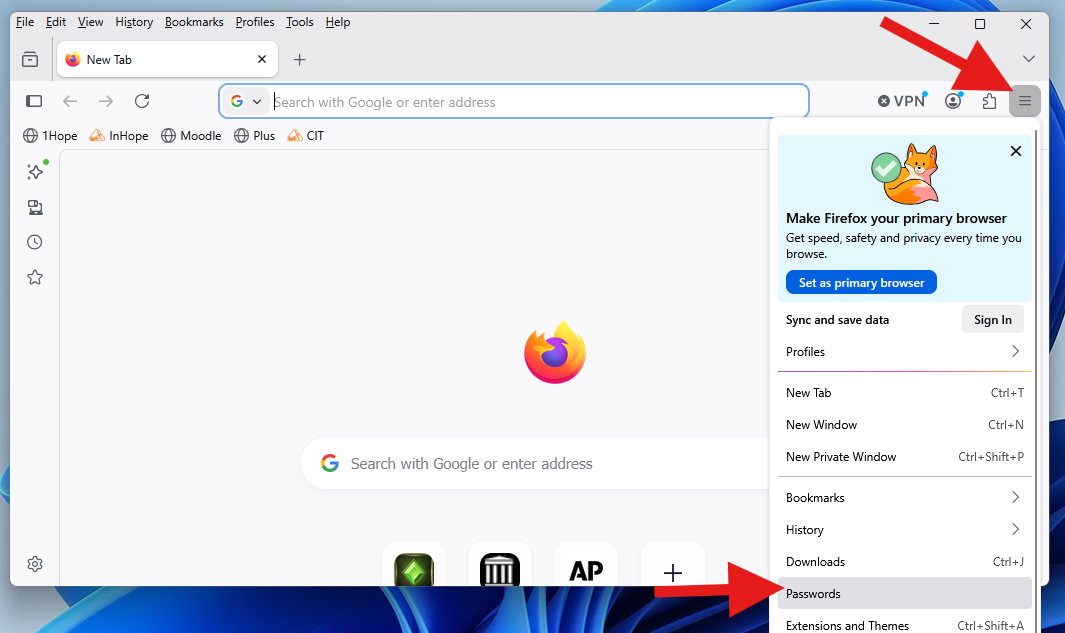
  1. Open the FireFox browser and click the 3 lines(☰) at the top right
  2. Click 'Passwords'.


3. You should see a list of all your saved passwords. Look for and select 'hope.edu' or 'sso.hope.edu'. You may be prompted for a password, enter the password used to unlock your computer.
(if you dont see the password here it might be saved in another app like Apple Passwords, Keeper, 1Password, etc.)


4. Click the eye in the 'Password' field and it will show you the current password saved. You can then use that on 'accounts.google.com


Step-by-Step Instructions for Mac/Safari:


If your Mac has macOS Sequoia, use the Passwords app. If your Mac has macOS Sonoma or earlier, you can find your saved passwords and passkeys in System Settings and Safari.


Step-by-Step Instructions for Apple Passwords App:

  1. Open the Passwords app.

  2. Sign in with Touch ID, or enter your user account password.

  3. Search for hope.edu.


Find your saved passwords and passkeys in the Passwords app on Mac.

  • To view a password, click the dots in the 'Password' field.


Step-by-Step Instructions for Safari:

  1. Open Safari.

  2. From the Safari menu, choose Settings, then click Passwords.

  3. Sign in with Touch ID, or enter your user account password.

  4. Search and select hope.edu, then click the Show Details button No alt supplied for Image.

  5. To view a password, click the dots in the 'Password' field.


On your Mac with macOS Sonoma or earlier, you can view saved passwords and passkeys in Safari Settings.

Feedback
0 out of 0 found this helpful

scroll to top icon